How to Get a Super Code
Prerequisites
- Log in to the POSItEasy Merchant application.
Getting the Super Code
The Super Code is a secure, unique authorization key generated in the POSItEasy Merchant application. It is used to connect and authenticate the POSItEasy Staff App on mobile or tablet devices to a specific billing terminal.
This guide walks you through navigating the Merchant app to find, view, copy, or regenerate a terminal's Super Code.
What is the Super Code Used For?
- Device Authentication: Authorizes the POSItEasy Staff App to connect to a specific terminal and synchronize orders.
Concurrent Logins
- By default, duplicate terminal logins are not allowed.
Step-by-Step Instructions
Follow these steps to retrieve or generate the Super Code for any terminal:
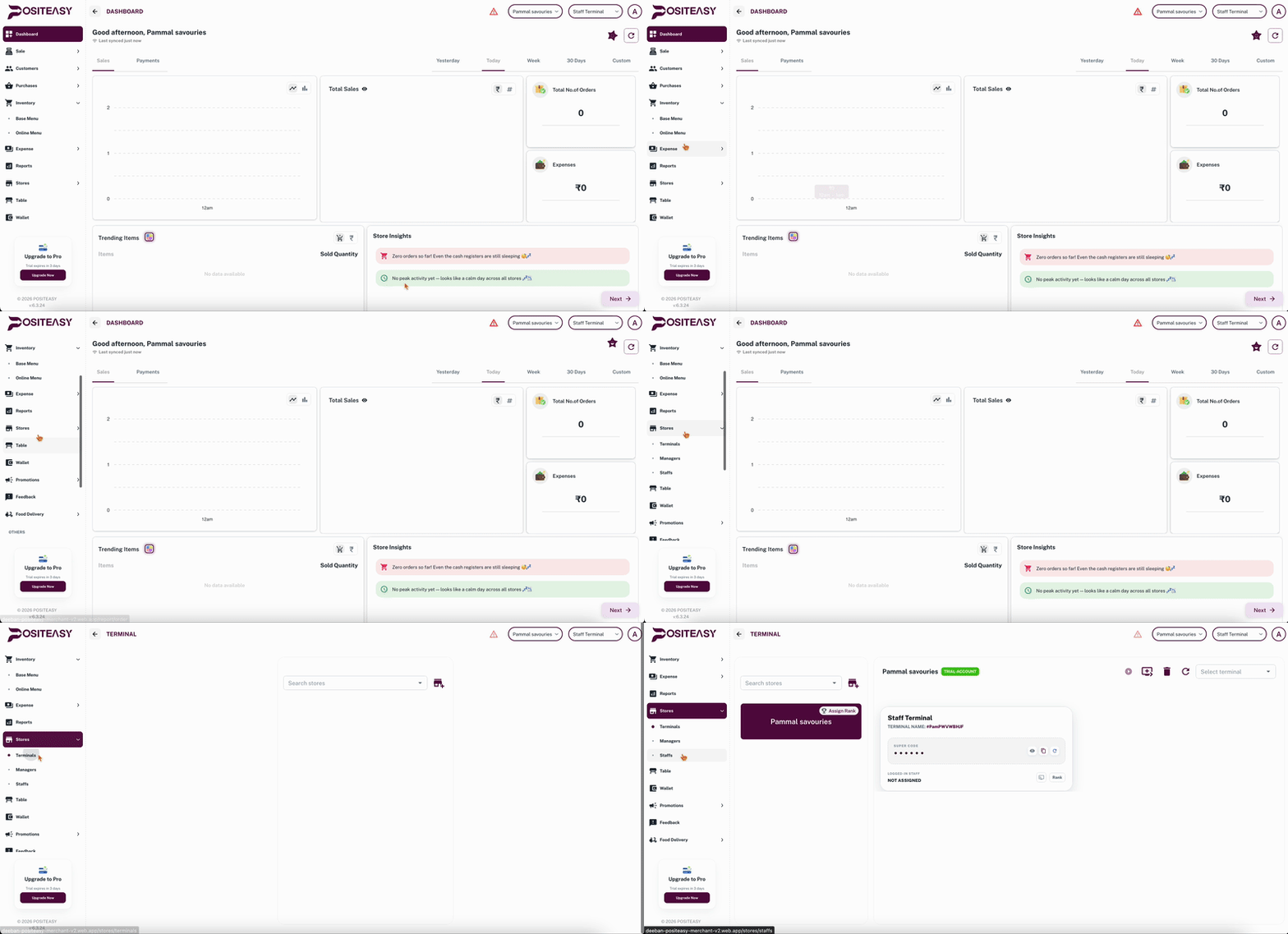
Step 1: Navigate to Terminal Settings
- Log in to your POSItEasy Merchant application.
- In the main navigation sidebar, click on Stores.
- From the Stores tabs or menu options, click on Terminals.
Step 2: Locate the Target Terminal Card
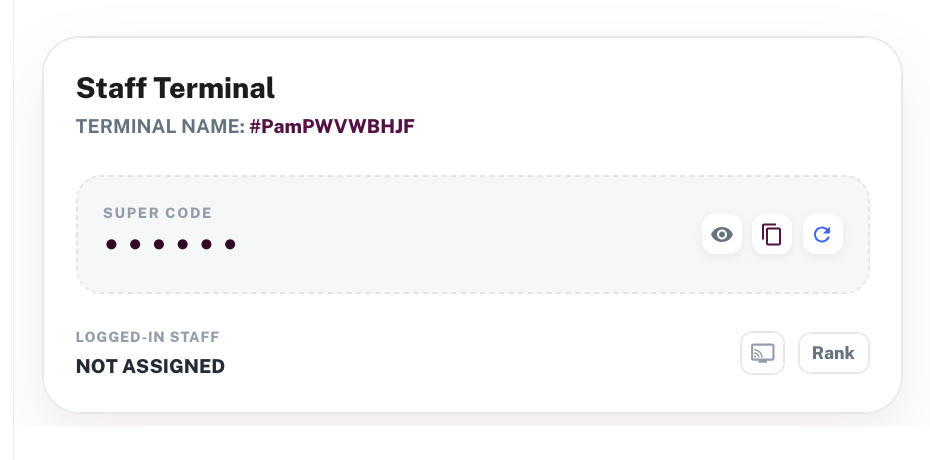
- You will see a list of your configured terminals. Each terminal is displayed on its own Terminal Display Card.
- Locate the specific terminal you wish to connect to (e.g.,
#Terminal 1or#Terminal 2).
Step 3: View, Generate, or Copy the Super Code
Depending on the status of your terminal's Super Code, follow the corresponding action on the card:
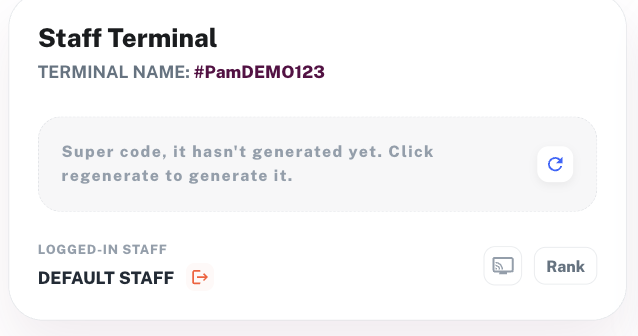
A. If the Super Code has NOT been generated yet:
- The card will display the following message:
Super code, it hasn't generated yet. Click regenerate to generate it.
- Click the Regenerate/Refresh icon (the circular arrow button
🔄) to generate a new Super Code for that terminal.
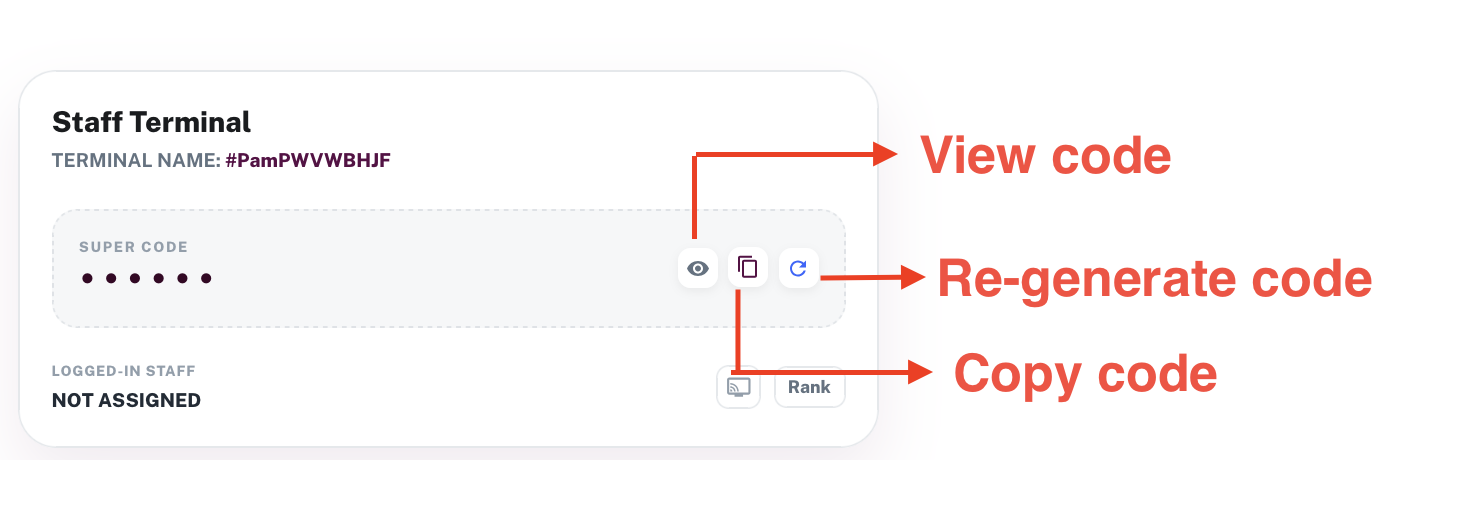
B. If the Super Code is already generated:
- By default, the Super Code is masked as
••••••for security. - Click the Visibility icon (the eye button
👁️) to unmask and show the clear-text code. - Click the Copy icon (the clipboard button
📋) to copy the Super Code to your clipboard.
The Super Code is terminal-specific. Ensure you retrieve the code for the exact terminal name/number you intend to configure on the staff device.
Regenerating a Super Code
If you need to disconnect active sessions or reset the access key for security reasons:
- Click the Regenerate/Refresh icon (the circular arrow button
🔄) on the terminal's card. - Confirm the action. A success toast notification stating "Supercode regenerate successfully" will appear, and a new code will be generated.
Regenerating the Super Code invalidates the previous code. Any Staff App currently using the old code must be reconfigured with the newly generated Super Code.
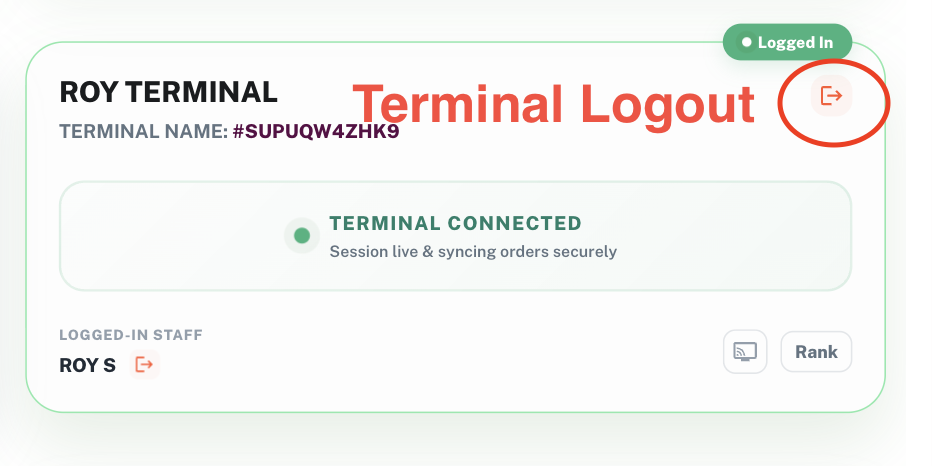
Remote logout of Terminal
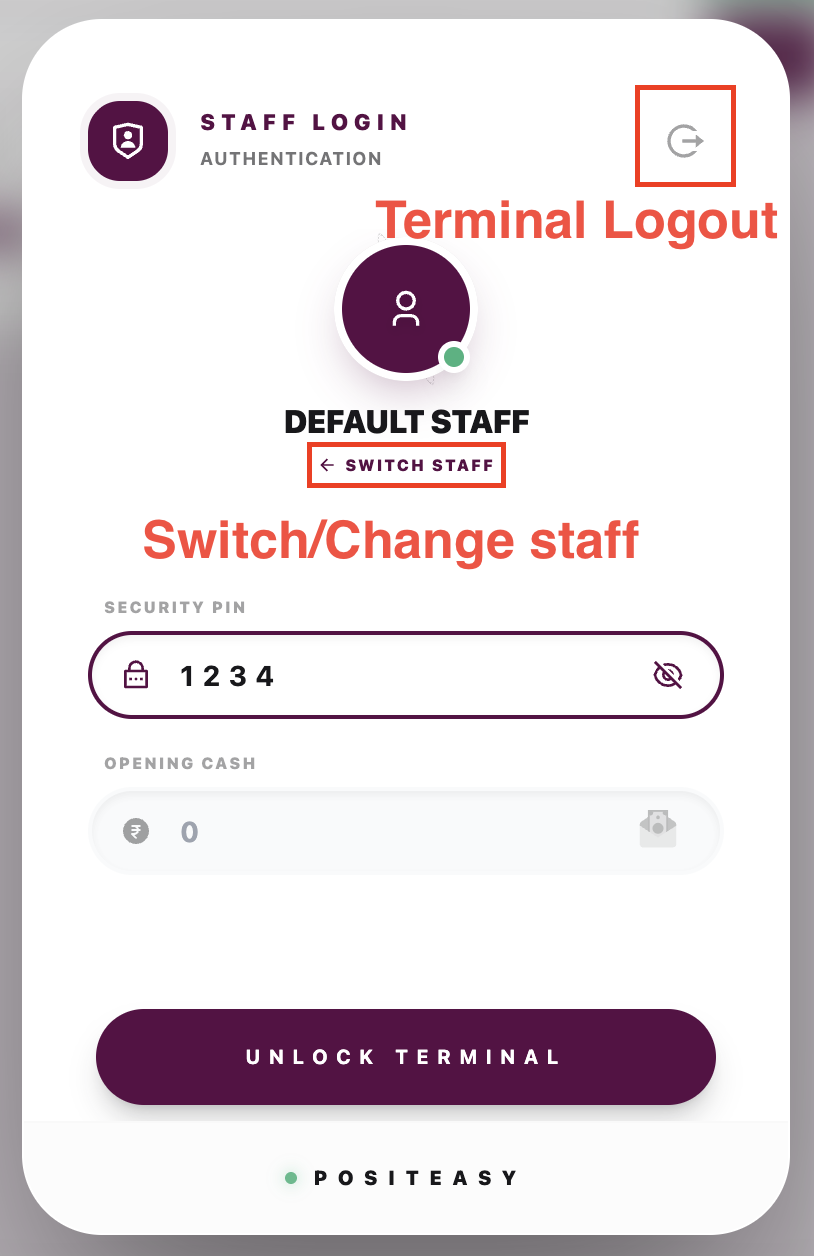
If you need to logout the terminal remotely you can click the highlighted icon in the terminal card.
A Super Code can be used only once to log in to the Staff App.
If you log out of the Staff App and want to log in again, a new Super Code will be generated. You must use the newly generated Super Code for the next login.
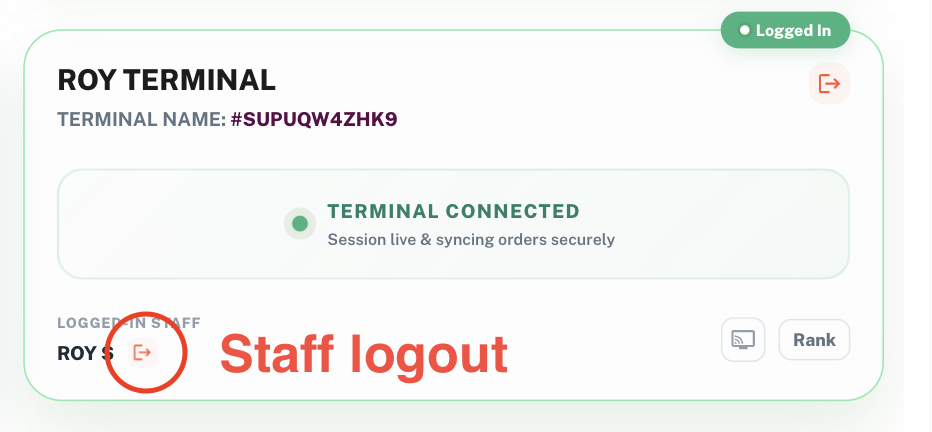
Remote logout of Staff
If you need to logout the staff remotely you can click the highlighted icon in the terminal card.
Log In to the Staff App
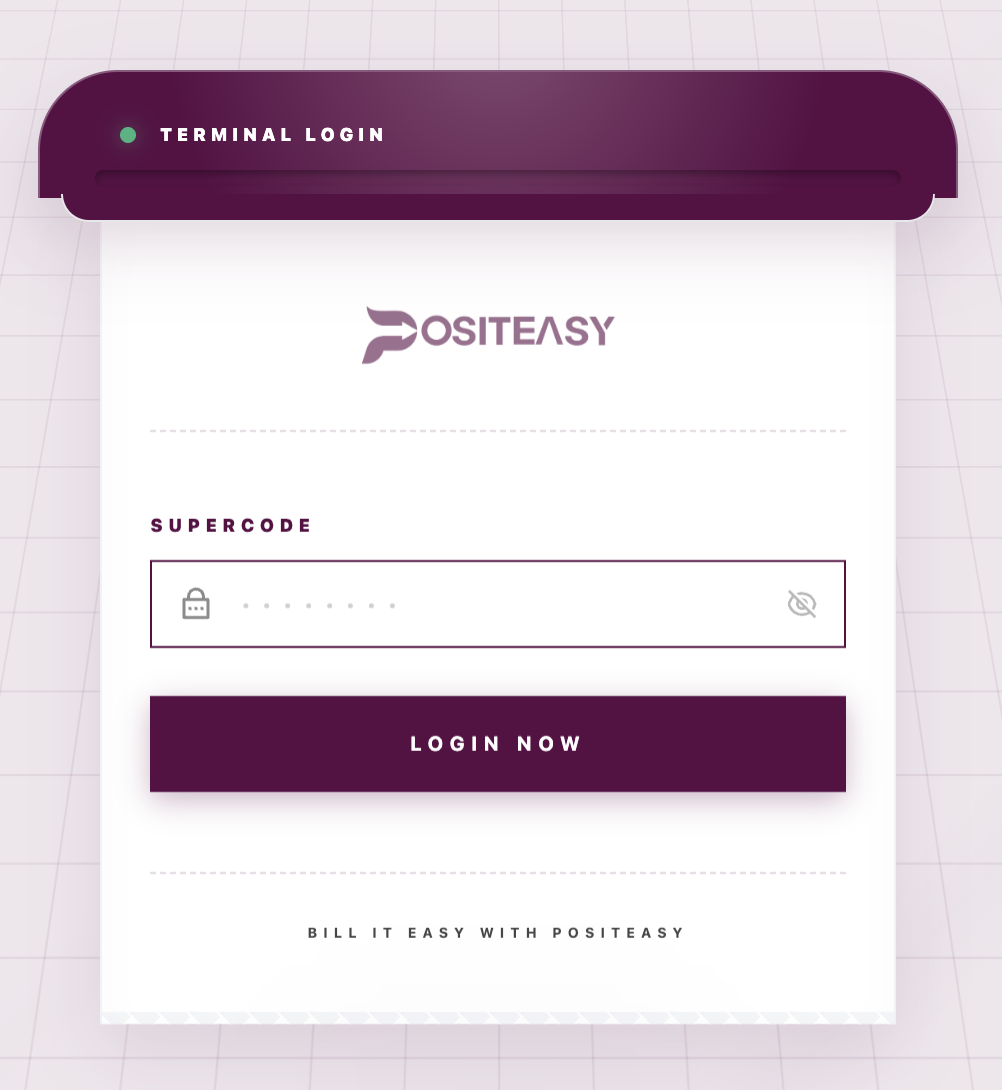
Once you have obtained the Super Code, open the POSItEasy Staff App, enter the Super Code, and tap Login now to connect the device to the terminal.
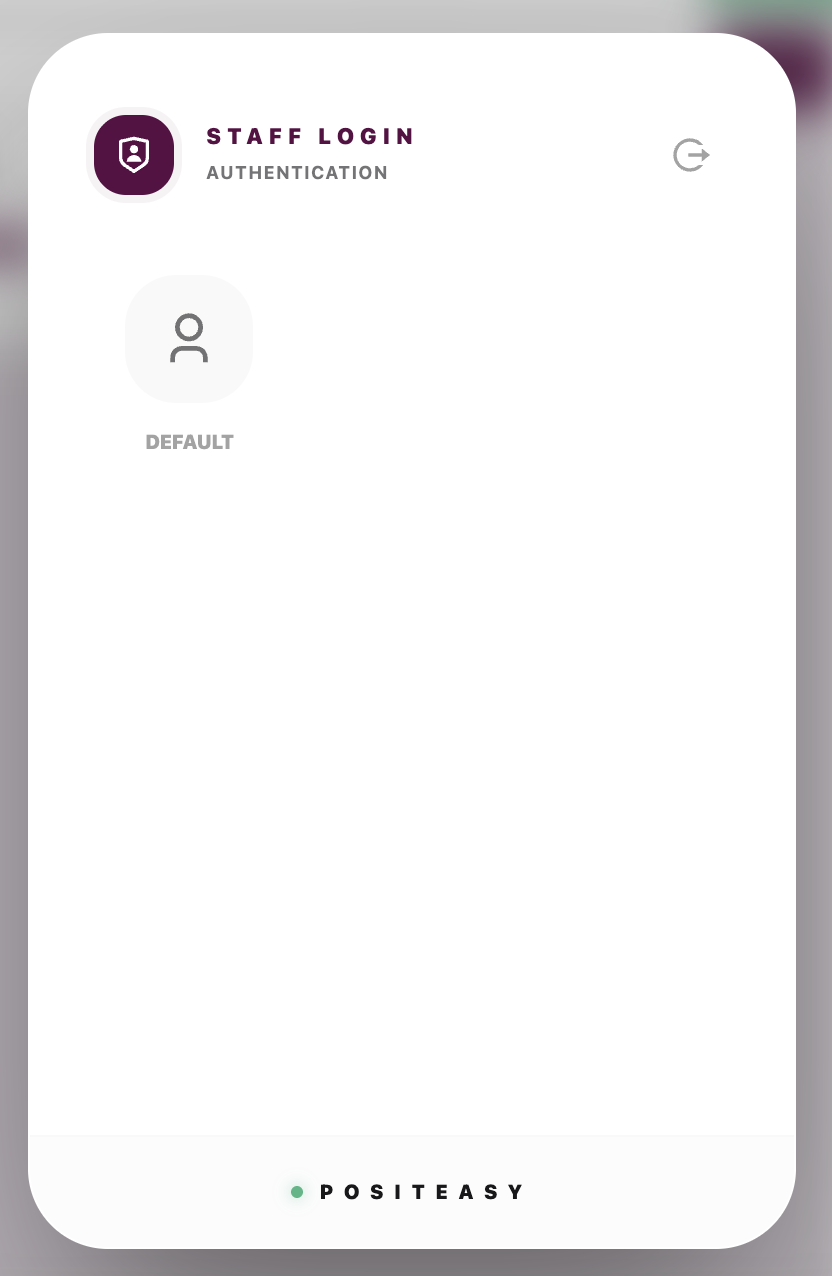
After successfully logging in to the terminal, the system prompts you to select a staff member.
- Select the appropriate staff member.
- Enter the staff member's security PIN.
- Tap Unlock terminal to continue.
By default, the security PIN is 1234.